The GE universal remote is one of the most popular and budget-friendly third-party remotes on the market. It’s compatible with a wide range of devices — TVs, DVD players, streaming boxes, audio systems, and more. Normally, setting it up means entering a specific 4-digit code that matches your device.
But what happens when you can’t find that code?
In this guide, you’ll learn how to program a GE universal remote without a code using what’s known as the auto code search method. This approach is a lifesaver for anyone who’s struggled to track down the right code for their device.
Even though Jasco (the manufacturer behind GE remotes) maintains an extensive code database searchable by model number, the auto search method is a reliable backup whenever the listed code doesn’t work or simply can’t be found.
How to Program the GE Universal Remote Without a Code
The GE universal remote comes with a built-in auto code search feature that scans its internal code library until it finds the one that matches your device.
Here’s a step-by-step walkthrough using a TV as the example — the same process applies to other devices with minor adjustments.
- Turn on your TV manually.
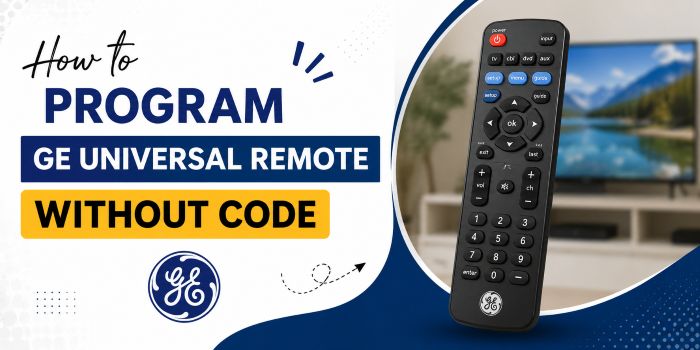
- Press and hold the SETUP button until the red indicator light turns on.
- Press the TV button. (For other devices, press the corresponding button — DVD, CBL, or AUX.)
- Press and release the power button on the remote every few seconds until your TV switches off.
- Manually turn the TV back on.
- Press and release the VOLUME UP button every few seconds until the TV turns off again.
- Press the TV button once more to lock in and save the code.
- Turn the TV on and test all the remote’s functions to confirm everything works.
If you run into trouble during setup, it’s worth resetting the GE remote before trying again. In some cases, the remote may already be programmed to its maximum device capacity, which can interfere with adding a new one.
How to Program an Older GE Universal Remote Without a Code
If you’re using an older GE remote model and the method above isn’t working, try this alternative approach instead — often referred to as the number search method.
- Turn on the device you want to pair (for example, a TV).
- Point the remote at the TV and press and hold SETUP until the LED light comes on.
- Press the device button on the remote — in this case, TV.
- Using the number keys, enter 9-9-1.
- Press and hold CHANNEL UP (+) along with the power button until the TV turns off.
- Press ENTER to save the code.
What If You Already Know the GE Universal Remote Code for Your TV?
If you happen to have the correct code already, you’re in luck — programming with a known code is much faster than the auto search process.
How to Program the GE Universal Remote With a Code
- Press and hold the SETUP button until the LED light turns on.
- Press the device button (TV, DVD, CBL, or AUX). The LED should blink twice and stay lit.
- Enter the correct 4-digit code for your device.
- If the code is correct, the LED will turn off automatically. Test the remote on your device to confirm it’s working.
Final Thoughts
Jasco’s official code library is the best place to start when looking for your device’s code. But when the code is missing or doesn’t work, the no-code auto search method covered above is a dependable fallback.
The good news: this method works reliably across most major brands, including Samsung, LG, Vizio, and others — so you should be able to get your GE universal remote paired and working without much hassle.