Roku-powered smart TVs are dominating the market right now, and the Hisense Roku TV is one of the most popular models out there. If you’re looking for a simple way to reset your Hisense Roku TV, you’ve come to the right place.
In this guide, I’ll show you how to reset a Hisense Roku TV in under a minute. A reset can fix common issues like a black screen, red light blinking problems, sound glitches, Wi-Fi connection errors, Bluetooth issues, and screen flickering.
Resetting your Hisense Roku TV is easy and can be done directly through the Settings menu. And if your remote isn’t working, don’t worry — I’ve also included steps to reset your Hisense Roku TV without a remote later in this post.
How to Factory Reset a Hisense Roku Smart TV
Every Hisense Roku TV comes with a compact remote control similar to the standard Roku stick remote. This remote controls both the TV hardware and the Roku software running on it. You can also use this same method to clear the cache on your Roku device.
Follow these steps to factory reset your Hisense Roku TV:
- Turn on your Hisense Roku TV
- Press the Home button on the remote
- Scroll down and select Settings
- Press the right arrow key to open the submenu
- Scroll down to System
- Press the right arrow key, then scroll to Advanced System Settings
- Press the right arrow key again to reveal the Factory Reset option
At this point, you’ll see two reset options:
- Reset TV Audio/Picture Settings — resets only audio and display settings
- Reset Everything — restores the entire TV to factory defaults
If you’re only dealing with screen flickering or sound issues, resetting just the audio and picture settings should do the trick. But if your Hisense Roku TV has more serious problems, a full “Reset Everything” is the better fix — this restores the TV to the exact state it was in when you first bought it.
Factory Resetting Audio and Picture Settings on a Hisense Roku TV
One of the most useful features of the Hisense Roku TV is the option to reset just the audio and picture settings instead of wiping everything.
When you reset only the audio and picture settings, your volume, display, and picture preferences return to default — but nothing else changes.
Your Roku account details (login credentials, installed channels, Wi-Fi network, Prime Video, Netflix, etc.) remain completely untouched. All your Roku-related customizations stay safe.
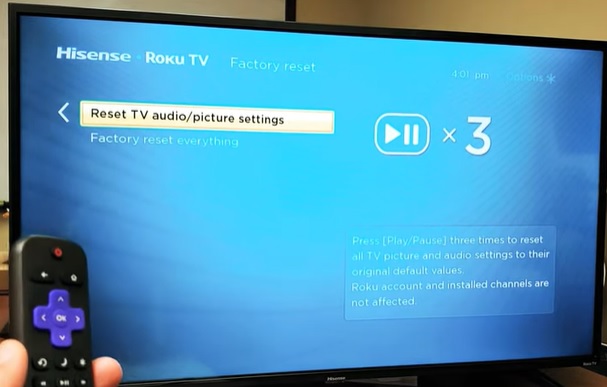
To reset the audio and picture settings, press the “Play/Pause” button 3 times while selecting the “Reset Audio&Pitcure settings” tab.
A message box will pop up showing a message that “All specific TV settings have been reset to the original value“. Press the OK button to proceed.
Factory Reset everything
This is the option where you can reset everything on your TV. All the changes made on your TV will be reset to factory mode.
Select the “Factory Reset Everything” option under the Advanced system settings.
An input box will be visible on the right side of the screen. 4 boxes will be there.
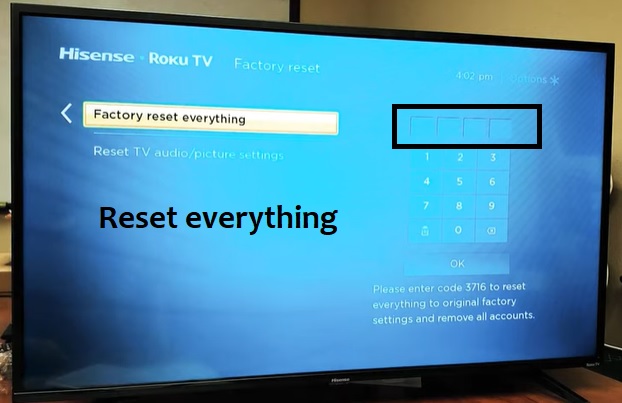
A Hisense TV reset code will be displayed on the bottom side of the screen. Enter the code properly on the box, and then press the OK button to Hisense Roku smart TV factory reset everything.
How do you factory reset Hisense Roku TV without a remote?
We have a simple method to reset your Hisense smart TV without a remote control. When the remote doesn’t work with the TV, you can apply this method.
So, how could it be possible?
Is there a reset button/reboot on Hisense Roku TV?
Yes! There is a factory reset button on the backside of the TV. This is a small button that is located just above the cable ports of the TV. Not all models have it, but all Roku-enabled smart Hisense TVs have this button.
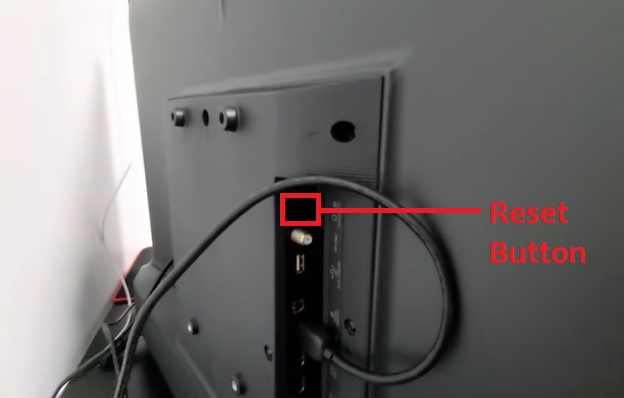
To reboot the TV without the remote, first of all, turn on your Hisense Roku TV
When the display comes on, press and hold down the reset button until the display goes off and comes. When the display comes back, it’ll show the Hisense Roku logo.
Then the TV turns black and starts the rebooting process.
You can reset the TV to the available languages, such as English, French, Portuguese, and Spanish. You can select the option by pressing the arrow keys on the TV panel.
Reboot the TV using the RemoteNow application
Yes! You can simply use your Android device to control the Hisense TV and go through the settings tab to restore it.
The most popular remote app is RemoteNow, which is available to download from the Android Play Store. The application uses a WiFi network to control your TV. So, when your smart device doesn’t have an IR sensor, do not worry.
First of all, download and install the RemoteNow app. Then connect the smart TV and the mobile phone to the same WiFi network.
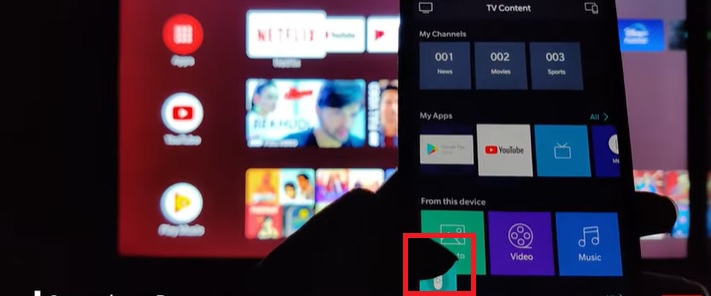
Then add your TV to the remote application. After successfully pairing the app and granting the necessary permissions, you can use it.
There is a remote control icon in the bottom left corner. Tap on it to launch the remote control interface.
Now you can follow the instructions that I provided earlier in the article to reset your TV.
Read More:-