TikTok is a major platform for small video creators. It has become the best tool for creating and sharing awesome, creative videos. It’s highly entertaining and amusing to watch. Have you ever wondered if watching TikTok on Roku TV is possible?
We can’t play TikTok videos directly on our Roku stick or smart TV since there’s no associated app available in the channel store. However, there is a screen-casting option available, allowing us to share the TikTok app screen on our streaming TV.
Since TikTok is not a channel or streaming platform, we can’t install or access it through any third-party apps available in the channel store, as we can with channels like MeTV on Roku. It’s something similar; we have YouTube Kids on our streaming platform.
Let’s dive into the detailed tutorials on how to get TikTok short videos Via screen sharing method from both Android and iOS platforms.
How to watch TikTok on Roku TV?
Here is the section where iPad and iPhone users can use it.
Casting TikTok to Roku: Easy Steps with iPhone and AirPlay
If you are using an iPhone or iPad, you can utilize the screen mirroring feature to watch TikTok on your Roku TV.
- Ensure both your iPhone and Roku are connected to the same WiFi network.
- On your Roku TV, navigate to Settings >> Apple AirPlay and HomeKit >> AirPlay>> using the remote control.
- On your iPhone or iPad, swipe from top to bottom. Then tap on the Screen Casting icon.
- Then select the ‘Roku TV’ device from the available device list
- If prompted, enter the provided code on your TV into your iPhone to complete the connection.
- Open the TikTok app on your iPhone, start playing videos, and enjoy them on your Roku-connected smart TV.
For Android devices
First, connect your Android device and Roku to the same WiFi network.
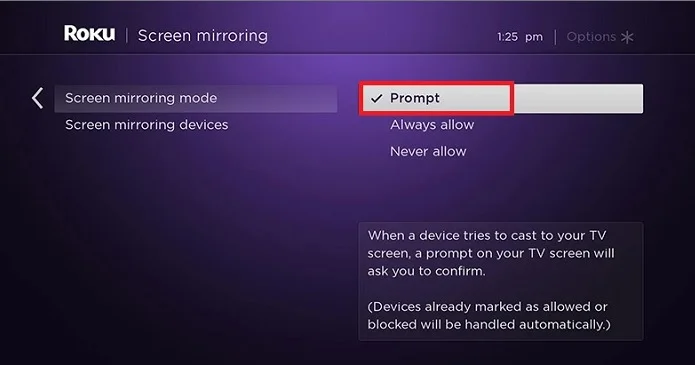
Step1: Enable Screen mirroring mode
Press the ‘Home’ button on the remote, then press the “Right” arrow key to access the menu. Navigate to “Settings” to find the screencast option. Follow the steps below:
Settings >> System >> Screen Mirroring >> Enable Screen Mirroring >> Prompt (Or Always Allow)
Step 2: Enable screencast on Android device
Next, enable the screencast feature on your Android device by swiping the screen from top to bottom after unlocking it.
If you can’t find the screencast option there, you should enable it through the settings path.
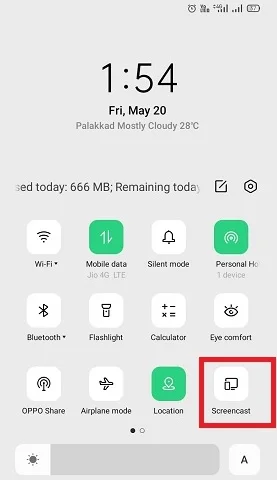
Tap on the screencast option in your Android settings. Note: Some smartphones might have ‘screen mirroring’ instead of ‘screencast,’ so choose accordingly.
After activating the screencast feature on Android, a list of available devices will appear. Select your Roku device from the list. When the TV screen prompt appears, choose “Allow” on your Roku TV.
Congratulations! You have successfully mirrored your screen.
Now, open your TikTok app on your Android device and start playing videos. Enjoy watching them on your Roku TV screen.
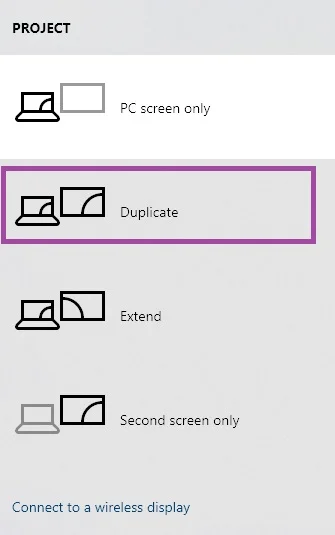
Mirror TikTok Videos from a Windows PC to a Roku Screen
Here’s some good news for Windows PC users. You can mirror the TikTok official website to the Roku TV Via WiFi. Works great on a Windows 10 PC.
Follow the instructions