Losing or breaking your remote doesn’t mean you’re stuck with whatever volume your Vizio TV happens to be set to. You can still turn the TV on using the physical power button, but adjusting the sound isn’t quite as obvious — most people don’t realize there’s a volume button built right into the TV itself, and there’s also a free app that turns your phone into a full remote.
In this guide, I’ll walk you through two reliable ways to turn up (or down) the volume on a Vizio TV without a remote: using the physical button on the TV, and using the official Vizio SmartCast app.
Method 1: Use the Volume Button on the TV
Every Vizio TV has a built-in volume control button, even if it’s not obvious at first glance.
Where is the volume button on a Vizio TV?
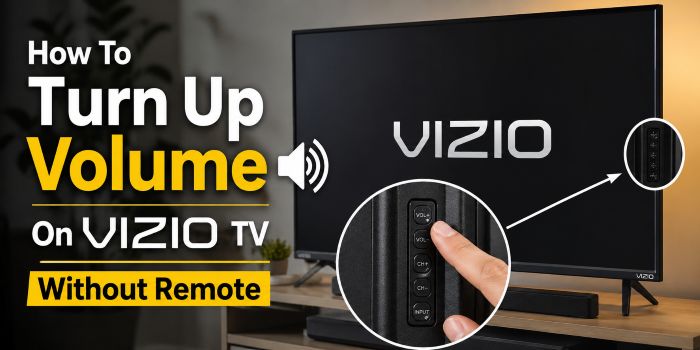
On most current Vizio smart TVs, the button is located on the bottom-left back side of the TV, just below the power button. You’ll need to reach around or turn the TV slightly to feel for it.
On older Vizio models (roughly 4–5 years old or more), the button is usually on the left side of the front panel instead, making it a little easier to find.
How to use it:
- Locate the long button below or near the power button.
- It works as a single rocker button — one end raises the volume, the other lowers it.
- Press the top end to turn the volume up.
- Press the bottom end to turn the volume down.
This method works instantly with no pairing, no app, and no WiFi required — it’s the fastest option if you just need to mute a sudden loud commercial or quiet things down quickly.
Method 2: Use the Vizio SmartCast App
If you’d rather control the volume from your phone (and get full remote functionality back), Vizio’s own SmartCast app is the way to go. It works with Vizio smart TVs, soundbars, and select non-smart TVs.
Step 1: Download the app
Install the SmartCast app for your device:
Step 2: Connect to the same WiFi network
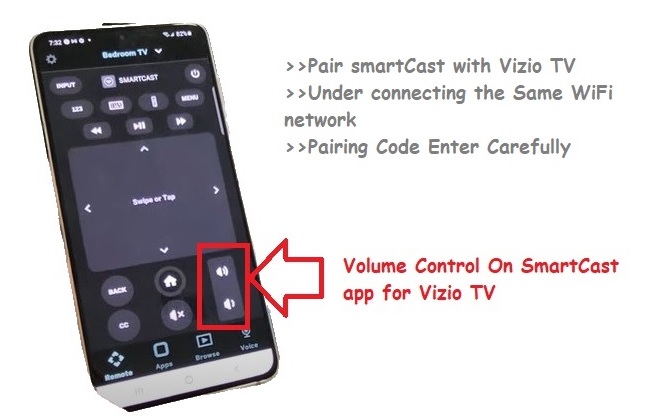
Make sure your phone and your Vizio TV are connected to the same WiFi network — this is required for pairing to work.
Step 3: Pair your phone with the TV
- Open the SmartCast app and tap Add Devices.
- Tap Get Started.
- Choose a device category (for example, “Bedroom TV”).
- Your TV screen will display a pairing code.
- Enter that code into the app to complete pairing.
Step 4: Control your TV
Once paired, the app gives you a full on-screen remote — volume up/down, power on/off, sleep timer, input switching, and even firmware updates, all from your phone.
Best Replacement Remotes for Vizio TV
If you’re tired of working around a missing remote, here are two solid replacement options:
XRT140 — A budget-friendly, Vizio-compatible replacement remote. No pairing required; just insert batteries and it works. Typically under $10.
Sofabaton U1 — A universal smart remote that can control up to 15 devices from a single unit, set up through a simple smartphone-based pairing process. Costs around $50, but useful if you want to consolidate remotes for your whole entertainment setup, not just the Vizio TV.
FAQ
Can I use my smartphone to control Vizio TV volume?
Yes. Download the Vizio SmartCast app for Android or iOS, pair it with your TV, and you’ll be able to adjust volume, switch channels, and power the TV on or off directly from your phone.
Where exactly is the volume button on a Vizio TV?
On most recent models, it’s on the bottom-left back panel, below the power button. On older TVs, check the left side of the front panel instead.
What should I check if my Vizio remote isn’t working at all?
First, check the batteries — dead batteries are the most common cause. Next, test the IR sensor using your phone’s camera (point the remote at the camera and press a button; if you see a flashing light on screen, the sensor is working). If everything checks out but it still won’t respond, try resetting the remote.
Do I need WiFi to use the volume button on the TV?
No. The physical button on the TV works independently of WiFi or any app — it’s a direct hardware control.
Read More:-